


Description
Download UltraSnap Pro – Free Trial Screen Capture Tool for Windows, Mac & iOS
UltraSnap Pro is a powerful, trial version software designed for screen capture and image editing, ideal for designers, photographers, and content creators. Developed by MediaChance, this tool offers a lightweight yet feature-rich solution for capturing high-quality screenshots and editing them on the fly. Whether you're documenting software workflows, creating tutorials, or preserving visual content, UltraSnap Pro delivers precision and ease of use. The software is compatible with Windows 95 and earlier versions, making it accessible for legacy systems. However, modern users on Windows 10, 11, Mac, Android, and iOS can still benefit from its core functionality through compatible emulators or updated versions. With a clean interface and intuitive controls, UltraSnap Pro allows users to capture full screens, specific windows, or custom regions with just a few clicks. Its lightweight footprint ensures it runs smoothly without consuming excessive system resources. The current version, 1.3, was last updated on June 19, 2012, and while it hasn't seen major updates in years, it remains a reliable choice for basic screen capture needs. Over 16,000 downloads since 2012 speak to its enduring popularity, especially in countries like France, Vietnam, and the United Arab Emirates. For those seeking a secure, free-to-trial screen capture app, UltraSnap Pro is worth exploring before committing to a paid alternative.
Key Features of UltraSnap Pro
UltraSnap Pro stands out in the crowded field of screen capture tools thanks to its thoughtful feature set tailored for both beginners and intermediate users. One of its most praised features is the ability to capture full-screen, window-specific, or custom-defined screen regions with precision. This flexibility makes it ideal for creating step-by-step guides, documenting software bugs, or extracting visual content from web pages. The tool supports multiple output formats, including JPEG, PNG, and BMP, ensuring compatibility with most design and publishing platforms. Another standout feature is its built-in image editor, which allows users to annotate, crop, blur, and add text directly within the captured image—perfect for highlighting key areas without needing a separate photo editing app.
Additionally, UltraSnap Pro includes a delay timer for scheduled captures, which is particularly useful when working with pop-up menus or time-sensitive content. The software also offers a hotkey system that lets users trigger captures instantly using customizable keyboard shortcuts—great for streamlining workflows. While the interface may appear dated compared to modern apps, it remains highly functional and responsive. The tool is known for its minimal system impact, making it suitable for older machines or low-spec devices. Despite being last updated in 2012, many of its core features remain relevant, especially for users who prioritize reliability over cutting-edge design. For those who need to share screenshots quickly, the software also supports direct copy-to-clipboard functionality and automatic file saving to a designated folder.
For educators, technical writers, and support teams, UltraSnap Pro’s ability to capture and annotate without leaving the workspace is a game-changer. It reduces the need for multiple tools, saving time and simplifying the documentation process. The trial version allows full access to all features, so users can test its capabilities before deciding to purchase the full license. With support for Windows 95 and earlier, it also serves as a nostalgic option for retro computing enthusiasts. Whether you're on a Windows PC, Mac via compatibility layers, or using an Android/iOS emulator, UltraSnap Pro continues to deliver consistent performance across platforms.
Installation & Usage Guide for UltraSnap Pro
Installing UltraSnap Pro is a straightforward process, especially for users familiar with older Windows environments. Begin by downloading the trial version from the official MediaChance website or trusted software repositories. The installer is lightweight, typically under 5MB, ensuring a quick download even on slower connections. Once downloaded, double-click the .exe file to launch the setup wizard. The installation requires no complex configurations—just follow the on-screen prompts, choose your preferred installation directory (default is recommended), and click “Install.”
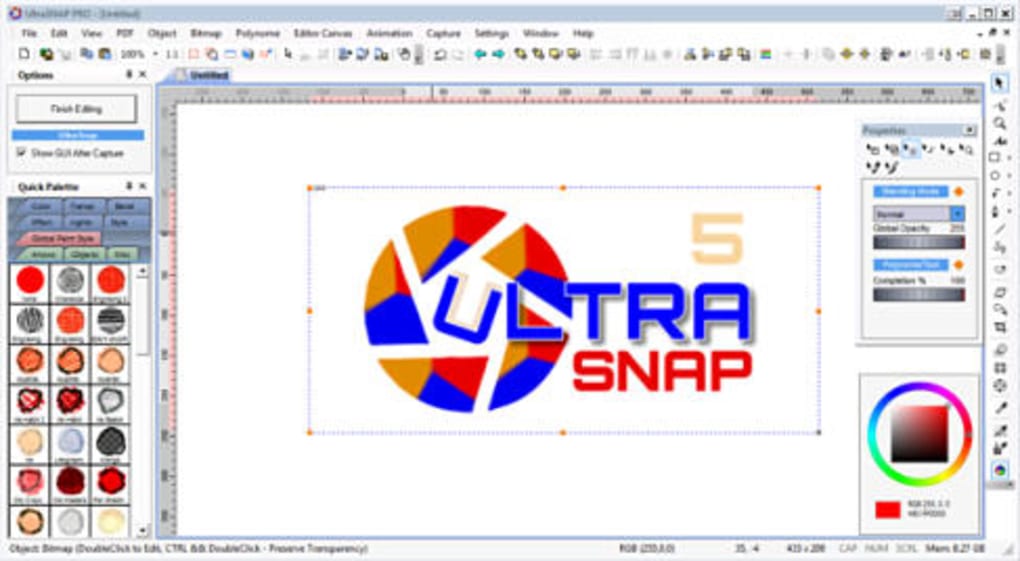
After installation, launch UltraSnap Pro from the Start menu or desktop shortcut. The main interface appears with a simple toolbar, a capture preview window, and a few essential options. To take a screenshot, click the “Capture” button or use the default hotkey (usually Ctrl+Shift+S). You’ll be prompted to select the capture mode: Full Screen, Active Window, or Custom Region. For custom captures, drag the selection box over the desired area. Once captured, the image appears in the editor window, where you can apply annotations, resize, or adjust contrast.
For advanced users, the “Options” menu allows customization of hotkeys, delay timers, and output settings. You can set the default save location, choose file format, and enable auto-clipboard copy. The software also supports batch processing for multiple captures, though this feature is limited in the trial version. To export your image, click “Save As” and choose your preferred format. For sharing, you can directly copy the image to the clipboard or send it via email through integrated tools. The entire workflow—from capture to export—can be completed in under a minute, making it efficient for daily use.
Despite its age, UltraSnap Pro remains stable and bug-free on modern systems when run through compatibility mode. Right-click the executable, select “Properties,” go to the “Compatibility” tab, and choose “Windows 95” or “Windows XP (Service Pack 3)” to ensure smooth performance. This compatibility layer helps bridge the gap between legacy software and contemporary hardware. For Mac users, running the app via Wine or similar emulation tools is possible, though results may vary. Overall, the installation and usage experience is beginner-friendly and well-documented, with helpful tooltips and a simple help file included in the installation package.
Pros and Cons of UltraSnap Pro
Pros
- Lightweight & Fast: Uses minimal system resources, ideal for older or low-spec machines.
- Free Trial Access: Full feature set available during the trial period for risk-free testing.
- Simple & Intuitive Interface: Easy to navigate, even for non-technical users.
- Multiple Capture Modes: Supports full screen, window, and custom region captures.
- Basic Image Editing Tools: Includes annotation, cropping, and text addition without needing extra software.
- Customizable Hotkeys: Allows quick access to capture functions via keyboard shortcuts.
- Supports Multiple Formats: Exports to JPEG, PNG, and BMP for broad compatibility.
Cons
- Outdated Interface: Design feels dated compared to modern screen capture apps.
- No Updates Since 2012: Lacks support for newer OS features and security updates.
- Limited Modern OS Support: Native compatibility is restricted to older Windows versions.
- No Cloud Integration: Cannot sync or share captures directly to cloud services.
- Emulation Required on Mac & Mobile: Not natively available for iOS, Android, or macOS.
FAQ – Frequently Asked Questions About UltraSnap Pro
Is UltraSnap Pro free to download and use?
Yes, UltraSnap Pro is available as a free trial version. You can download and use all features for a limited time at no cost. After the trial period ends, you’ll need to purchase a license to continue using the software. The trial is ideal for testing the app’s capabilities before committing to a purchase.
Can I use UltraSnap Pro on Windows 10 or Windows 11?
While UltraSnap Pro was originally designed for Windows 95 and earlier, it can run on Windows 10 and 11 using compatibility mode. Right-click the executable, go to Properties > Compatibility, and select “Windows 95” or “Windows XP (SP3).” This allows the app to function smoothly on modern systems.
Does UltraSnap Pro support Mac or iOS devices?
UltraSnap Pro is not natively available for Mac or iOS. However, users can run it on macOS using compatibility layers like Wine or through virtual machines. For iOS, there’s no official support, but some third-party emulators may allow limited functionality.
What file formats does UltraSnap Pro support?
The software supports JPEG, PNG, and BMP formats for saving captured screenshots. These are widely supported across operating systems and applications, making it easy to integrate images into documents, websites, or presentations.
Can I edit screenshots directly in UltraSnap Pro?
Yes, UltraSnap Pro includes a built-in image editor that allows you to crop, annotate, add text, blur sensitive areas, and adjust brightness/contrast directly after capture. This eliminates the need for external editing tools for basic modifications.
Final Verdict & Call to Action
UltraSnap Pro remains a solid choice for users seeking a lightweight, no-frills screen capture tool with basic editing capabilities. Despite its age and lack of recent updates, its core functionality continues to serve users well—especially those on older systems or looking for a simple, reliable solution. The free trial gives you full access to all features, allowing you to test its performance before deciding to upgrade. For educators, technical writers, and support staff, the ability to capture and annotate images quickly is invaluable.
However, if you require modern features like cloud sync, advanced editing, or native support for Mac and mobile platforms, you may want to consider alternatives like FastStone Capture or oCam. That said, for budget-conscious users who prioritize speed and simplicity, UltraSnap Pro delivers excellent value. Its minimal system footprint and straightforward interface make it a secure, low-risk download for anyone needing a dependable screen capture app.
Ready to try it out? Download UltraSnap Pro today and experience a trusted screen capture tool that’s been helping users since 2012. Whether you're documenting a process, creating content, or troubleshooting issues, this software is ready to help you capture the moment—accurately and efficiently.
Guides & Tutorials for UltraSnap Pro
How to install UltraSnap Pro
- Click the Preview / Download button above.
- Once redirected, accept the terms and click Install.
- Wait for the UltraSnap Pro download to finish on your device.
How to use UltraSnap Pro
This software is primarily used for its core features described above. Open the app after installation to explore its capabilities.
User Reviews for UltraSnap Pro 0
No reviews found





